Sync Calendar Events using CALDAV in C#

In this post I will walk you through the steps of reading calendar events from CALDAV supported servers. Yahoo, Google, etc. supports CALDAV

What is CALDAV?

CALDAV is an internet standard allowing client to access scheduling information on remote server. It’s an extension of WebDAV which is a HTTP-based protocol for data manipulation. The protocol is defined by RFC 4791. As it’s an extension to WEBDAV protocol it uses HTTP verbs to manipulate calendar events some of them mostly used are PROPFIND, SEARCH, etc.

Background Information

  1. Every server has a separate URI to access calendar events.

Yahoo: https://caldav.calendar.yahoo.com/dav/user_name/Calendar/calendar_name/

Google: https://www.google.com/calendar/dav/user_name/events/

  1. Each Calendar folder is a collection and contains many calendar events. Each calendar event is a file and ended with .ics extension. .ics is well understood by many clients and you can easily export data from .ics to local client application.

How to Program

Now let’s see how to write a code to call Yahoo calendar events

  1. First of all create a new project in Microsoft Visual C# .NET
  2. Add reference to DDay.iCal library from Nuget Package manager console. This library will be used to read .ics files and read information about each event.
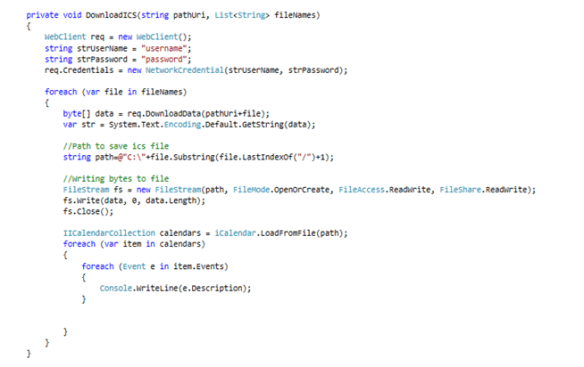
  3. Write below code to retrieve calendar event on any click event.


    In the above code snippet you have to configure your user name, password and modify the calendar URI depending on your calendarname and username.

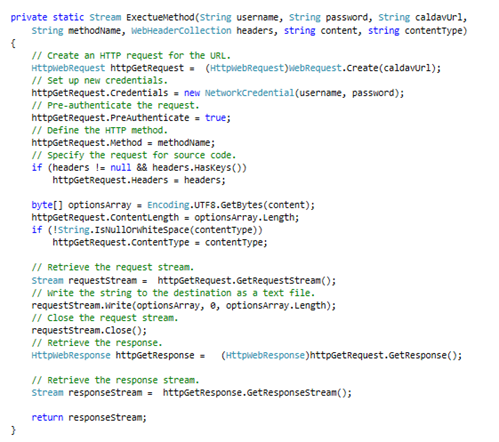
If you see the code, I specified a content string which contains the request that I am sending it to the server. CALDAV have specific request formats which you can study here

ExecuteMethod is a helper method that sends request to the server and returns the response stream. Once I get the response stream I load the XML document and read the InnerXml of the file to get the complete XML. Then I parse the xml document and search for DAV:href element that contains the calendar event file (.ics) information. Once I get the list of .ics file paths, I call DownloadICS helper method to get the complete event information.

Helper Methods
Following are the helper method that performs specific operations. Please write these in your code to compile the project.

DownloadICS – Downloads .ics files


ExecuteMethod: Request calendar and returns response stream


Packt 2000th book Campaign

In the past, I have done few book reviews offered by Packt publishing and found that they have good set of technology related books.

Recently, they have launched an offer in which Packt is giving all its customers a chance to enjoy their books by giving them a free e-book copy for every purchase. This offer is valid from 18th March till 26th March 2014. People who are fond of reading technology related books must check here


Certificate error when deploying WCF Azure Service

Last night I was working on some Azure WCF Service and while deploying on the Windows Azure Platform, I continuously faced error that “The certificate with thumbprint was not found in windows azure”. It was a simple WCF service based on BasicHttpBinding and has few operation contracts.

After doing deep research I found that while packaging a service from Package Windows Azure Application window, if you select “Enable Remote Desktop for all roles” or “Enable Remote Debugger for all roles” it expect to have certificates uploaded on azure portal and you should have specified the exact thumbprint in the Certificates section from properties window. Otherwise your deployment does not succeed.

Therefore, I succeeded disabling these two checks while creating a package and also made sure that there were no <certificates></certificates> tags inside service definition (.csdef) file and service configuration (.cscfg) file.

Hope this helps!

Reviewed Book “ASP.NET Web API: Build RESTful web applications and services on the .NET framework” by JoyDip Kanjilal

I have gotten this opportunity to review the book named ‘ASP.NET Web API: Build RESTful web applications and services on the .NET framework‘ from Packt (UK based publishing company specializing in focused IT books).

Following is a review I made for this book

This book is very good to study the concepts of RESTful applications, SOA and ROA. Joydip have used different Microsoft technologies to showcase these terms. However, I found less information related to Web API which is the title of book and few topics like formatters, bindings and self-hosting web APIs are missing. I think there should be some chapter detailing the basic and advanced features of Web API that helps the reader to gain complete information on Web API.

Link to book page: http://www.packtpub.com/aspnet-web-api-build-restful-web-applications-services-on-the-dotnet-framework/book?utm_source=Book&utm_medium=mention.com&utm_campaign=Book_mention

Adding Queryable Support to ASP.NET Web API Controller Action Methods

In this article I will show that how we can make our Web API methods queryable so the user can apply query operators and expressions to filter data.

We will use OData library for ASP.NET Web API that have the [Queryable] attribute provided, which facilitates in issuing queries.

1. Create ASP.Net Web API Project

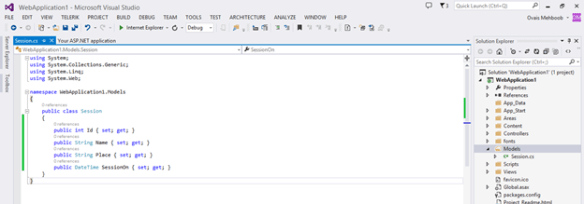
2. Add sample model class which defines properties

3. In this example, I have created a Session class as follows

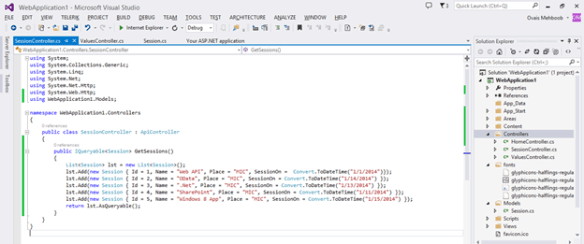
4. Now add a SessionController which will contain Get, Post, Put, Delete methods for CRUD operations.

5. It will create an empty controller. Now we will specify Get method and return session list as queryable.

6. Now add OData reference from Nuget Package Manager by searching as web api odata and click Install on Microsoft ASP.NET Web API 2 OData

7. Once you install, It will ask you to accept the license agreement, click I Accept and proceed

8. Now add [Queryable] attribute on GetSession method.

That’s it, build the solution and test.

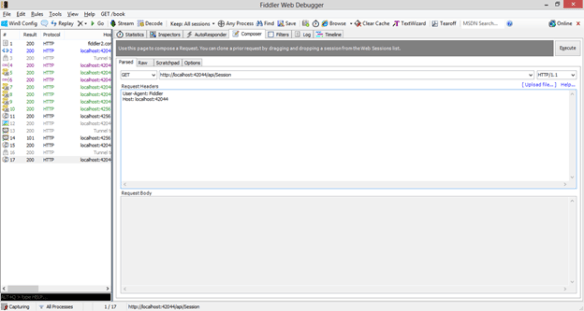
9. Open fiddler and select GET HTTP Method and navigate to the URL i.e. http://[youraddress:port]/api/Session

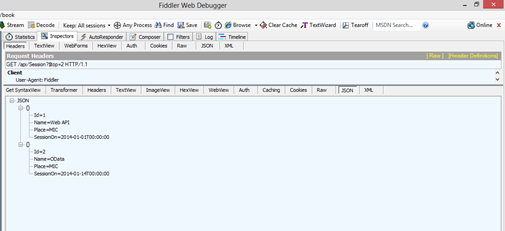
10. Once you hit the above URI it will show you the complete session list in JSON format as follows

11. Now you can apply query operators on your request and filter data

Following are some query operators you can use to issue queries

$top=n: Returns only the first n entities in an entity set (or in Atom terms, the first n entries in a feed).

$skip=n: Skips the first n entities in an entity set. Using this option lets a client retrieve a series of distinct pages on subsequent requests.

$format: Determines whether data should be returned in JSON or the XML-based Atom/AtomPub format. (The default is Atom/AtomPub.)

$orderby=: Orders results, in ascending or descending order, by the value of one or more properties in those results.

$filter=: Returns only entities that match the specified expression.

$select=: Returns only the specified properties in an entity.

$inlinecount: Returns the server computed count of the number of entries produced by the query request.

Example

To select top 2, my URI would be like http://[youraddress:portNo[/api/Session?$top=2

Result:

Creating Custom Formatter in ASP.NET Web API for specific formatted response

In this article I will show you how to create a custom formatter in ASP.Net Web API to send formatted response.

Before diving into deep, let me give you a quick introduction to formatters

Formatters in ASP .NET Web API plays an important role, when the request comes to the server, depending on the media-type, determines which formatter has to be used to parse the request and assemble the data into appropriate format as response. In ASP.Net Web API when the request is made by the user, Web API framework checks if it is Simple Type or a Complex Type. All types like string, integers, etc. are simple types and by default ASP.Net Web API read those values from URI and uses Model binding. On the other hand for complex types, ASP.Net WEB API framework read it from request body by default (the behavior can be overridden) an depending on the content-type load specific formatter from the list of formatters available in HttpConfiguration list.

When you are creating a custom formatter in ASP.Net Web API, you have two options one is when the request is arrived on server and you want to return the data in specific format or when the request arrives and you want to read/parse the data in specific format.

In this example, we will see how you can return the response in PSV i.e. pipe separated value format.

Create a class that should be derived from BufferedMediaTypeFormatter or MediaTypeFormatter.

The difference is

  • MediaTypeFormatter – This class uses asynchronous read and write methods.
  • BufferedMediaTypeFormatter – This class derives from MediaTypeFormatter but wraps the asynchronous read/write methods inside synchronous methods. Deriving from BufferedMediaTypeFormatter is simpler, because there is no asynchronous code, but it also means the calling thread can block during I/O

In the example, we will use BufferedMediaTypeFormatter

Following are the methods available in BufferedMediaTypeFormatter class

// Summary:


// Represents a helper class to allow a synchronous formatter on top of the


// asynchronous formatter infrastructure.


public
abstract
class
BufferedMediaTypeFormatter : MediaTypeFormatter

{


// Summary:


// Initializes a new instance of the System.Net.Http.Formatting.BufferedMediaTypeFormatter


// class.


protected BufferedMediaTypeFormatter();


// Summary:


// Gets or sets the suggested size of buffer to use with streams in bytes.


//


// Returns:


// The suggested size of buffer to use with streams in bytes.


public
int BufferSize { get; set; }


// Summary:


// Reads synchronously from the buffered stream.


//


// Parameters:


// type:


// The type of the object to deserialize.


//


// readStream:


// The stream from which to read


//


// content:


// The System.Net.Http.HttpContent, if available. Can be null.


//


// formatterLogger:


// The System.Net.Http.Formatting.IFormatterLogger to log events to.


//


// Returns:


// An object of the given type.


public
virtual
object ReadFromStream(Type type, Stream readStream, HttpContent content, IFormatterLogger formatterLogger);


//


// Summary:


// Reads asynchronously from the buffered stream.


//


// Parameters:


// type:


// The type of the object to deserialize.


//


// readStream:


// The stream from which to read.


//


// content:


// The System.Net.Http.HttpContent, if available. Can be null.


//


// formatterLogger:


// The System.Net.Http.Formatting.IFormatterLogger to log events to.


//


// Returns:


// A task object representing the asynchronous operation.


public
override
sealed
Task<object> ReadFromStreamAsync(Type type, Stream readStream, HttpContent content, IFormatterLogger formatterLogger);


//


// Summary:


// Writes synchronously to the buffered stream.


//


// Parameters:


// type:


// The type of the object to serialize.


//


// value:


// The object value to write. Can be null.


//


// writeStream:


// The stream to which to write.


//


// content:


// The System.Net.Http.HttpContent, if available. Can be null.


public
virtual
void WriteToStream(Type type, object value, Stream writeStream, HttpContent content);


//


// Summary:


// Writes asynchronously to the buffered stream.


//


// Parameters:


// type:


// The type of the object to serialize.


//


// value:


// The object value to write. It may be null.


//


// writeStream:


// The stream to which to write.


//


// content:


// The System.Net.Http.HttpContent, if available. Can be null.


//


// transportContext:


// The transport context.


//


// Returns:


// A task object representing the asynchronous operation.


public
override
sealed
Task WriteToStreamAsync(Type type, object value, Stream writeStream, HttpContent content, TransportContext transportContext);

}


When we derive our custom formatter class from BufferedMediaTypeFormatter class we have to override following methods.


public
override
bool CanWriteType(Type type)


public
override
void WriteToStream(Type type, object value, System.IO.Stream stream, System.Net.Http.HttpContent content)


We can put some logic inside CanWriteType method that checks the type and return true or false. If the resultant value is true the framework calls WriteToStream method otherwise the WriteToStream method won’t be called.

Here is the complete code of custom formatter.


public
class
PsvFormatter : BufferedMediaTypeFormatter

{


public PsvFormatter()

{

SupportedMediaTypes.Add(new System.Net.Http.Headers.MediaTypeHeaderValue(“text/pipe”));


}


public
override
bool CanWriteType(Type type)

{


if (type == typeof(Session))

{


return
true;

}


return
false;

}


public
override
void WriteToStream(Type type, object value, System.IO.Stream stream, System.Net.Http.HttpContent content)

{


using (var writer = new
StreamWriter(stream))

{


var singleSession = value as
Session;


if (singleSession == null)

{


throw
new
InvalidOperationException(“Cannot serialize type”);

}

WriteItem(singleSession, writer);

}

stream.Close();


}


private
void WriteItem(Session session, StreamWriter writer)

{

writer.WriteLine(“{0}|{1}|{2}|{3}”, session.Id,

session.SessionName, session.SessionDateTime, session.Place);

}


}


In the above code snippet, if you see the constructor I have added the Media type header value in the SupportedMediaTypes list which will be used to pass in the request header information. While invoking WEB API method you can pass text/pipe as ACCEPT header attribute.

In the CanWriteType method I am checking if the type of the object which I am returning is of type Session. In my code example I have a Session whose structure is as follows.

public
class
Session

{


public
int Id { set; get; }


public
string SessionName { set; get; }


public
DateTime SessionDateTime { set; get; }


public
string Place { set; get; }

}


In the WriteToStream method I am using the stream writer and writing the object as pipe separated string.

Now in the DataController which is the Web API controller, I have a Get method which fetches the session object from database. After fetching the session object from database, web API framework calls CanWriteType and WriteToStream method and parse the object into Pipe separted string and send that string as the response.

public
class
DataController : ApiController

{


public
Session Get()

{


return repository.All<Session>().Where(i => i.Id == 3).First();

}

}

Using fiddler, I made a request to my data controller and passed text/pipe as ACCEPT attribute this tells the framework that the return response should be text/pipe. Web API framework checks the formatter and uses my custom formatter to serialize the response in pipe separated string.


And the response is here


You can see how easy it is to implement custom formatter in ASP.Net WEB API and in the next series of article I will blog a post about handling custom content type requests in ASP.Net Web API

Reviewed Book “Learning Vaadin 7 – Second Edition by Nicolas Fränkel”

I have gotten this opportunity to review the book named ‘Learning Vaadin 7- Second Edition’ from Packt (UK based publishing company specializing in focused IT books).

Following is a review I made for this book

“This book is a useful step by step guide that focuses on both basic and advanced concepts of Vaadin framework. There are few corrections needs to be done, as in chapter 1, I found a typo error in the diagram and also in chapter 3, JSON syntax is not correct. Apart from this it’s a nice read and good for developers to reference when doing hands on. Nicolas has not only articulated core concepts but has also shown the way of configuring and developing programs using Eclipse IDE”

Link to book-page: http://www.packtpub.com/learning-vaadin-7-second-edition/book

Hosted two Sessions on MS Dynamics CRM and ASP .NET Web API @ Microsoft

As a group leader of Microsoft Technology Practices User Group i.e. http://meetup.com/mstpug, organized two sessions this week at Microsoft Innovation Center, Karachi.

First Session: Customizing MS Dynamics CRM

Speaker: Asif Fattah

Linked In Profile: http://www.linkedin.com/pub/asif-fattah/20/69b/972

Session Duration : 1 hour


Second Session: Detailed Overview on ASP .NET Web API

Speaker: Me (Ovais Mehboob Ahmed Khan)

Linked In Profile: http://pk.linkedin.com/in/ovaismehboob/

Session Duration: 1 hour


It was both online and on-location event in which some of our group members have attended the event by visiting onsite and few joined online via Lync.

We are planning to organize more events in future and in order to get updates please join us and become a group member by following this link http://meetup.com/mstpug. Group members can get benefitted by monthly Plural Sight subscriptions depending on how active they participate. Also, the presentations and webcast of previous sessions are available on the user group website.

Few snaps:


At last, I would like to thank Microsoft for providing us space and services to organize our events.

Loading Web API Controllers from other Libraries when Self Hosting Web API

When Self Hosting Web API, we have to create controllers on the same project, otherwise it does not detect the libraries even if we reference the Web API project where we have all the controllers and classes defined.

For example, if we have a Web API project which was hosted over IIS earlier and we decided to Self Host it on a windows service project or a console application; we have to copy-paste or drag/drop the classes from the Web API project to Self Host Web API project and also have to change its namespace so it could be searchable by the Web API framework. But what if we have a centralized project where we have all the controllers in place and we want Self Host Web API project to load all the controllers from there.

In order to overcome this scenario we can create a custom assembly resolver let say SelfHostAssemblyResolver and replace the default one to this. SelfHostAssemblyResolver implements IAssemblyResolver interface and then implements the GetAssemblies method that loads the assemblies from particular path.

So first, create a custom assembly resolver


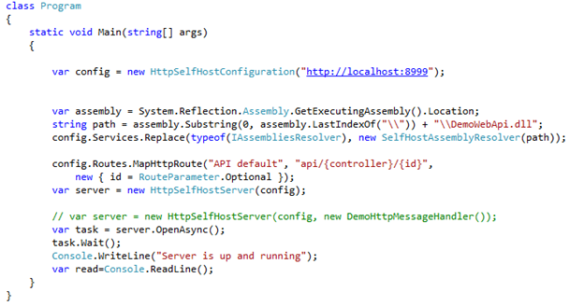
In the below code, where you are initializing the Self Host Web API, replace the default assembly resolver with your custom assembly resolver using HttpSelfHostConfiguration object.


In the above code snippet, DemoWebApi.dll is the main Web API project I was using initially, that had used the default Web API hosting on IIS.

Happy coding!

Reducing XAP size of Silverlight Client apps

In this article I would like to share my experience related to the hosting of Silverlight Chat applications on real production servers and accessing it over internet.

I developed a Silverlight chat application based on Silverlight 5 and ASP.Net that’s works perfectly and runs smoothly but sometimes take some time to download and load a Chat Panel (that was based on Silverlight) which seems quite notorious. After doing some R&D I came to know that with simple configuration from Visual Studio on your project settings page you can compress the XAP file size and make your life easier.

As in the project I used Telerik and AJAX toolkit controls and some of the assembly sizes were big which takes some time to load the Silverlight application on client side. As by default, the XAP file embedded all the assemblies in itself. But you can change that option by “Reduce XAP size by using application library caching” option from Project properties of your Silverlight project.

By doing this a compressed version of all the assemblies downloaded on client side and cached and next time if you reload the application it will not download all the assemblies again but used the cached version.

When you enable this check all the assemblies that are referenced in the Silverlight project got compressed and added in the ClientBin folder.

After doing this, when I checked the XAP file size I got really happy.

Before compression

After compression