Configuring Live Authentication in SharePoint 2010

This post shows the steps which leads towards the configuration of Live Authentication in SharePoint 2010.

Before going in depth I want to tell some key points when configuring Live Authentication in SharePoint 2010. Actually WLID provides two zones “INT” and “PROD”. The “INT” zone is for testing purpose and the “PROD” zone is for production and you can use your actual hotmail or live accounts to authenticate users in SharePoint. One cannot directly submit their site to PROD until and unless they first submit their site in “INT”.

Creating a Test account

First of all create a test account in account services database.

1. Go to https://accountservices.msn-int.com
2. Sign up a new account
3. Choose “Yes, use my e-mail address” in the Signup window and press continue
4. Fill the form and specify an email address which contains @hotmail-int.com in the end. for e.g. ovaismehboob@hotmail-int.com

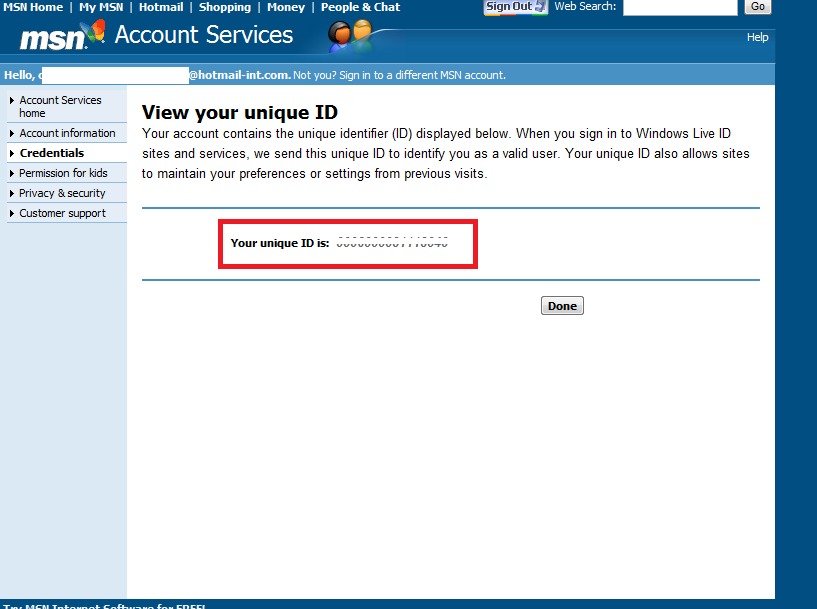
5. After creating account we need to see the unique id of the newly created account.
6. Click on credentials and note the UniqueId, save it somewhere we need to use it while specifying the site collection administrator for sharepoint site.

Registering a Site at Microsoft Services Manager

1. Navigate to http://msm.live.com
2. Enter your hotmail or live account id and sign in
3. Click on “Register your Site” link
4. Specify the name of your site for e.g. “Ovais Live Site”
5. Specify the DNS name of your site for e.g. “ovais.live”
6. Select the checkbox named “Windows Live Id”

7. Click on submit
8. Now after done submitting click on the “Manage your site” link
9. In the Manage your site page click on “Modify Editable Site properties”

10. Click on “Show Advanced Properties”
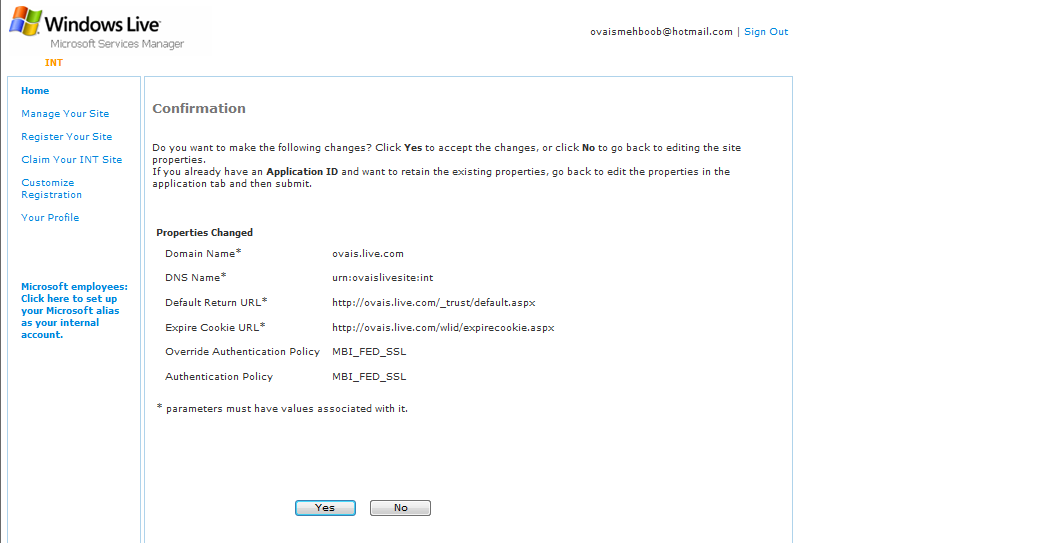
11. Configure the domain name in my case i have specified ovais.live.com
12. Specify DNS in my case i have specified urn:ovaislivesite:int
13. Specify the domain name in the default return url to https://ovais.live.com/_trust/default.aspx. Make sure it should match with the domain name.
14. Specify the domain name in the Expire cookie URL to https://ovais.live.com/wlid/expirecookie.aspx. Make sure it should match with the domain name.
15. Select “Override Authentication Policy” to MBI_FED_SSL
16. Click on Submit.
Creating and Importing a Certificate provided by Nexus Passport INT
1. Navigate to the https://nexus.passport-int.com/federationmetadata2/2007-06/federationmetadata.xml
2. Copy the inner text of X509Certificate node and paste it in a notepad.
3. Save the file with .cer as file extension
4. Run MMC.
5. Add Certificates Snap In
6. Import the newly created certificate in three places.
– SharePoint > Certificates
– Trusted People > Certificates
– Trusted Root Certification Authority > Certificates

Create STS Provider

Open Microsoft Shell Management and execute scripts as defined below. Note: the $realm should match with the DNS name you have specified while creating your site at msm.live.com. The $certfile should map to the path where the certificate is stored which was created in the previous section.

1. asnp microsoft.sharepoint.powershell
2. $realm = “urn:ovaislivesite:int”
3. $certfile = “C:\Live.cer”
4. $rootcert = Get-PfxCertificate $certfile
5. New-SPTrustedRootAuthority “Live ID INT Root Authority” -Certificate $rootcert
6. $emailclaim = New-SPClaimTypeMapping
-IncomingClaimType “http://schemas.xmlsoap.org/claims/EmailAddress”
-IncomingClaimTypeDisplayName “http://schemas.xmlsoap.org/claims/EmailAddress”
-SameAsIncoming
7. $upnclaim = New-SPClaimTypeMapping
-IncomingClaimType “http://schemas.xmlsoap.org/ws/2005/05/identity/claims/nameidentifier”
-IncomingClaimTypeDisplayName “UPN”
-LocalClaimType “http://schemas.xmlsoap.org/ws/2005/05/identity/claims/upn”
8. $authp = New-SPTrustedIdentityTokenIssuer -Name “LiveID INT”
-Description “LiveID INT” -Realm $realm -ImportTrustCertificate $certfile
-ClaimsMappings $emailclaim,$upnclaim -SignInUrl “https://login.live-int.com/login.srf”
-IdentifierClaim “http://schemas.xmlsoap.org/ws/2005/05/identity/claims/nameidentifier”

Create Web Application in SharePoint

1. Open Central Management and click on Application Management
2. Click on New in the top panel
3. Select Claim Based in the Authentication
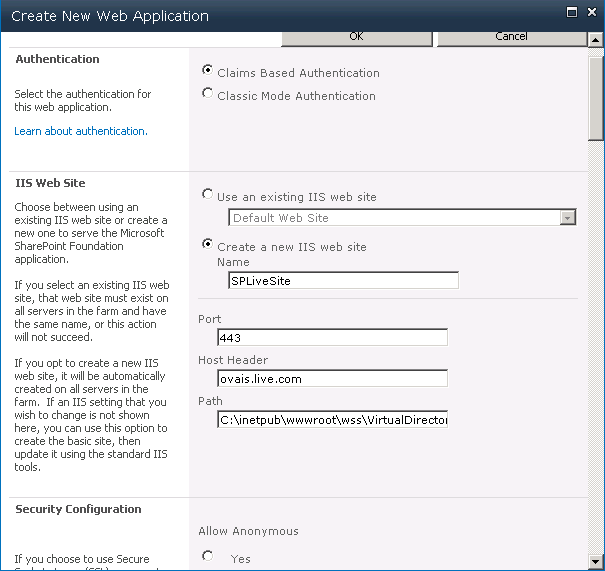
4. Select Allow Anonymous to No and SSL to Yes as shown below.

5. Click OK to finish creating a web application.
6. Now create a site collection. Click on the Create Site Collection under Application Management tab in Central Administration
7. Specify any title and select any template
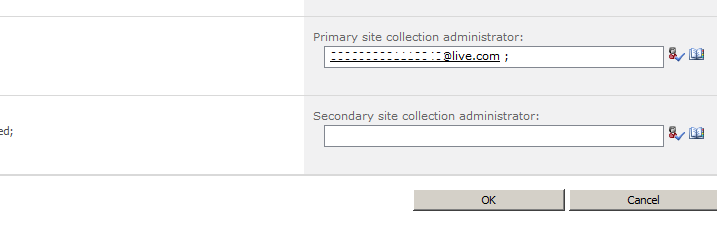
8. In the Site collection administrator specify the live account address, the format should be uniqueid@live.com.
Add Certificate to Web Application

1. Open IIS
2. Open Server Certificates

3. Click on “Create Self Signed Certificate”
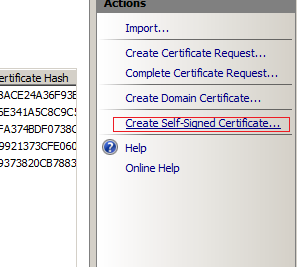
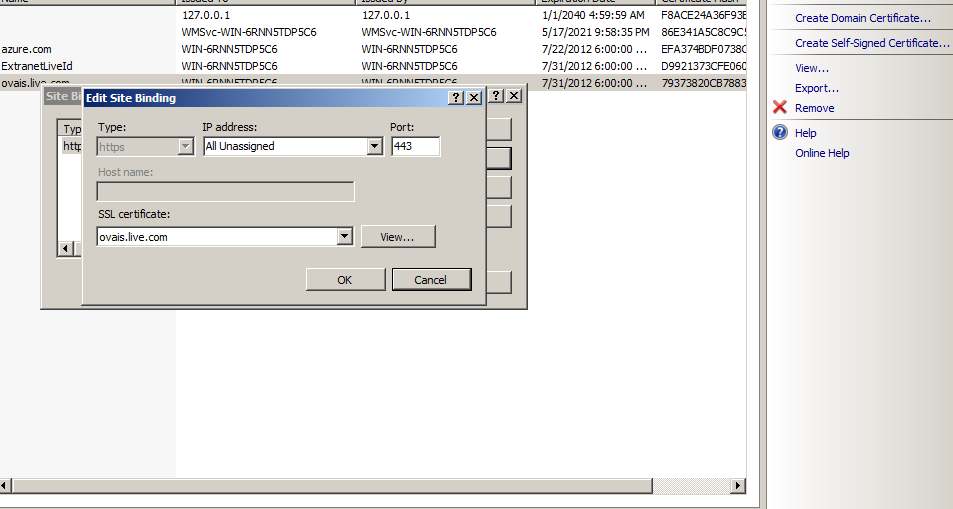
4. Specify certificate name in my case i had specified “ovais.live.com”
5. Add this certificate in the newly created web application and also add https binding to 443.
Configure Host Address
1. Open file C:\Windows\System32\drivers\etc\Hosts in Notepad and specify the host address

2. Click on the “Configure Alternate Access Mappings” under System Settings in Central Administration

3. Specify the Site URL, in my case it was ovais.live.com

4. Check by accessing https://ovais.live.com

5. It will show you to select the Authentication Provider

6. Select Live ID
7. Enter Live id login credentials

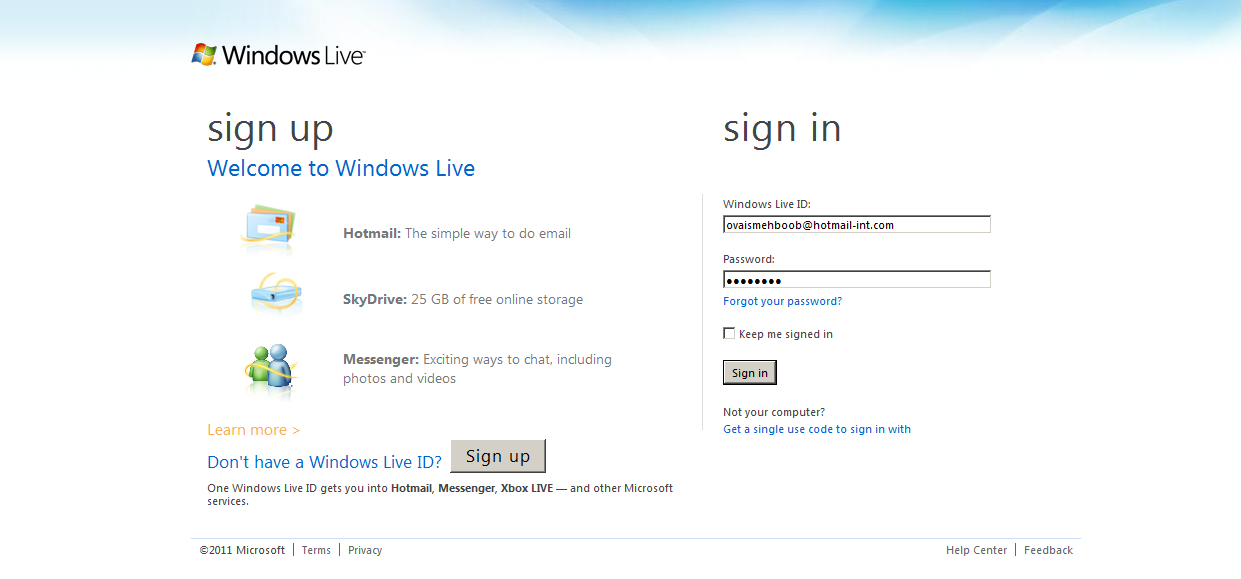
8. Press Sign In

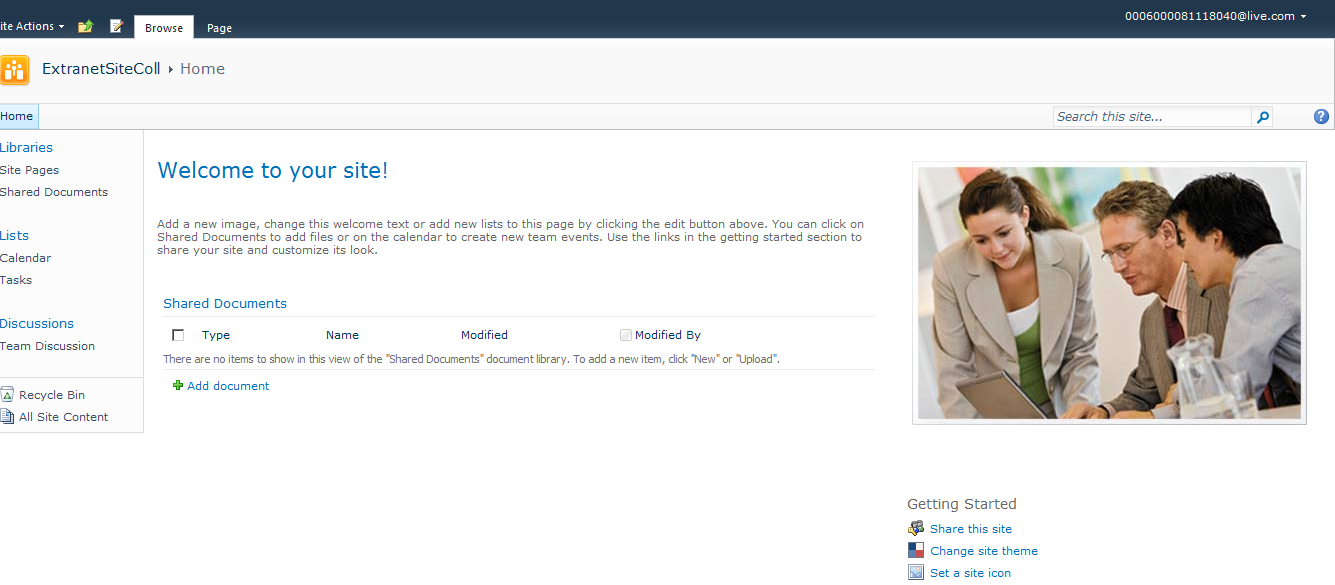
9. It will show the SharePoint site as shown below.
Developing iPhone Applications using Vaadin touchkit and .Net WCF Services

iPhone market is emerging day to day and the no. of clients are increasing time to time. Therefore, i got a task to do some research on the development of iPhone applications. One way is to use Mac OS and develop applications using Objective C or Mono Touch SDK for iPhone development. As i dont have a licensed MAC OS i tried out the other way and used Vaadin Touch toolkit for developing front end interface in Java using Eclipse IDE and calling .Net WCF service or Webservices for backend logic.

What is Vaadin?

Vaadin is a web application framework for Rich Internet Applications (RIA). In contrast to Javascript libraries and browser-plugin based solutions, it features a robust server-side architecture. This means that the largest part of the application logic runs securely on the server. Google Web Toolkit (GWT) is used on the browser side to ensure a rich and fluent user experience.

Vaadin is a large collection of UI components. You compose the application user interface from components such as Buttons, Tables, Trees and Layouts. The components use events, listeners and data binding to communicate with each other and with your business logic.

Vaadin is a robust architecture for rapid application development. The component-based architecture together with statically typed Java language and data binding features help you build applications that are easily modularized and refactored as needed. The IDE and tooling support including visual designing tool help you to build web user interface extremely fast.

Basic Architecture Diagram

Installations to be done:

1. Download and install the latest Eclipse IDE for Java EE developers from Eclipse IDE Download

2. Downlaod Vaadin Eclipse Plugin from Vaadin Plugin Download

3. Download Vaadin Touckit extension from Vaadin Touckit Download
Once downloaded and installed you have to download and configure the Vaadin toolkit in Eclipse IDE.

4. Tomcat server from Tomcat Server download

Configuring Tomcat Server in Eclipse IDE

1. Extract Tomcat files in some folder for e.g. C:\Tomcat

2. Open your eclipse IDE and click on File > New > Other and select Server.

3. Press Next and select the Tomcat Version you have downloaded and press Next.

4. Click on Add and specify Path of the Tomcat directory and press Finish.

5. Start the server to ensure that the Tomcat server is running and configured successfully.

Creating a WCF Service Project in .Net C# using Visual Studio 2010 IDE

1. Now we need to create a simple WCF service which exposes HelloWorld method and that method returns some text that we will display in the mobile application.

2. Open Visual Studio 2010.

3. Create a new WCF Service Application project

4. Declare a method named HelloWorld which returns some string.


namespace TestService
{
[ServiceContract]
public interface ITestService
{
[OperationContract]
string HelloWorld();
}
}

5. Implement it in a Service class that implements the ITestService interface.


namespace TestService
{

public class WCFTestService : ITestService
{
public string HelloWorld()
{
return "Hello world!";
}
}
}

6. Build the solution and open WCFTESTCLIENT from Visual Studio Command Prompt

7. Add service address from File > Add Service…

8. Invoke HelloWorld method it will display the text named Hello World!, Hence the service is tested.

Creating a new Vaadin Project in Eclipse

1. Now create a new Vaadin project from Eclipse IDE

2. Drag and drop the Vaadin touckit jar file from the downloaded path to the WEB-INF > lib folder.

3. Following is the code snippet of main class which inherits the Application class.


package com.example.samplevaadin;

import com.vaadin.Application;
import com.vaadin.touchkit.TouchPanel;
import com.vaadin.ui.*;

public class SamplevaadinApplication extends Application {
/**
*
*/
private static final long serialVersionUID = 1L;

@Override
public void init() {

final Window mainWindow = new Window("Samplevaadin Application");
final TouchPanel panel=new TouchPanel();

panel.navigateTo(new TouchScreen());
mainWindow.setContent(panel);

setMainWindow(mainWindow);
setTheme("touch");
}

}

4. Add another class which extends to TouchLayout provided in the Touchkit API. Following code snippet shows the TouchScreen class whose object we have passed in the NavigateTo method of TouchPanel object.

following is the complete code snippet of TouchScreen class


package com.example.samplevaadin;

import com.vaadin.touchkit.TouchLayout;
import com.vaadin.touchkit.TouchMenu;
import com.vaadin.touchkit.TouchMenu.TouchCommand;
import com.vaadin.touchkit.TouchMenu.TouchMenuItem;

public class TouchScreen extends TouchLayout{
/**
*
*/
private static final long serialVersionUID = 1L;

public TouchScreen(){

setCaption("Main Screen");
TouchMenu menu = new TouchMenu("Samples");
menu.addItem("Call Service", new TouchCommand() {
public void itemTouched(TouchMenuItem selectedItem) {
getParent().navigateTo(new CallService());
}
});

addComponent(menu);

}
}

In the above class we have created a Touch Menu which will be displayed in the TouchScreen user interface. It contains a menu named “Call Service” and on clicking on this menu it navigates to another screen names CallService which contains code to call WCF service.

5. Update the web.xml and set ServletClass to com.vaadin.touchkit.mobileapplication.MobileApplicationServlet

Adding WCF Service reference in Eclipse Vaadin project.

1. Right click the the Vaadin project and click New

2. Click WebServices > Web Service Client

3. Specify the WCF Service wsdl address in my case it was http://localhost:5425/WCFTestService.svc?wsdl

4. Click finish, eclipse will create proxy class to the service reference which you can used in your code as i have shown above.

Now Create a new class named CallService and following is the code snippet of CallService class.


package com.example.samplevaadin;

import java.rmi.RemoteException;
import com.vaadin.touchkit.TouchLayout;
import com.vaadin.ui.*;
public class CallService extends TouchLayout {

/**
*
*/
private static final long serialVersionUID = 1L;

public CallService(){
setCaption("Call Service");

org.tempuri.ITestServiceProxy proxy=new org.tempuri.ITestServiceProxy();
String str=null;
try {
str = proxy.helloWorld();
} catch (RemoteException e) {
// TODO Auto-generated catch block
e.printStackTrace();
}

addComponent(new Label(str));
}
}

Executing the project

1. Run the project from eclipse

In the above screen it calls the service and display the result i.e. Hello World!

Email document via Office 365 Exchange Web Services Managed API 1.1 from Windows File Context Menu

I was just exploring the Microsoft Exchange Web Services API for Office 365 through which you can programmatically perform several operations on Office 365 Exchange account.

In this post i will walk you through the application which sends the selected file to particular recipient as an attachment. It does not only sends a document but also registers a new context menu on files/document in windows registry that gives an option to user to just select the file and email it as an attachment.

Below snap shows the console window that displays the processing log when the user initiated the request.

Let’s start with the actual work.

1. First of all you need to create an Office365 account from MS Office365 site and download the Microsoft Exchange Web API 1.1. from Microsoft Exchange Web Services API 1.1..

2. Now there are two projects mainly, one which creates an entry into registry. For this i have created a windows application that makes an entry into the registry. Other one is the console application which sends a document selected to the recipient specified in the app.config. This is just for the demo purpose you can also specify a list somewhere in the database etc and read the recipient addresses from there.

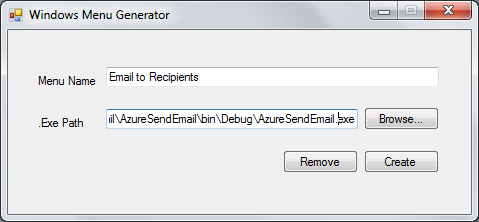
3. Below is the screen shot of the Windows form application from where the user creates a context menu in the windows registry at file level.

Above screen show two text field controls named Menu Name and Exe Path. In the “Menu Name” text field we just specify the menu we want to create in the windows registry where as the “Exe Path” holds the executable (in our case a console application) that launches when user click on that menu.

Following is the code snippet for making an entry into registry.

private void btnCreate_Click(object sender, EventArgs e)
{

RegistryKey regmenu = null;
RegistryKey regcmd = null;
try
{
regmenu = Registry.ClassesRoot.CreateSubKey(MenuName);
if (regmenu != null)
regmenu.SetValue("", this.txtMenuName.Text);

regcmd = Registry.ClassesRoot.CreateSubKey(Command);
if (regcmd != null)
regcmd.SetValue("", this.txtExecutablePath.Text+ " \"%1\"");

}
catch (Exception ex)
{
MessageBox.Show(this, ex.ToString());
}
finally
{
if (regmenu != null)
regmenu.Close();
if (regcmd != null)
regcmd.Close();
}

}
This will create an entry into the registry.

Lets now create a console application which will use Web Exchange API to send emails.

4. Create a new Console Application project.

5. Add Reference to  Microsoft.Exchange.WebServices.

6. Following code snippet shows the way of using Web Exchange Service and send an email as an attachment.

class Program
{
static String _primaryLabUserId;
static ExchangeService _service;
static void Main(string[] args)
{
String filepath = args[0].ToString();
Console.WriteLine(filepath);
Console.WriteLine("Sending Email");
ConnectToExchangeService();
SendEmail("From_address@youroffice365domain.com", "to_Address@abc.com", "Subject", "Body", filepath);
Console.WriteLine("Email Sent!");
Console.Read();
}

private static void ConnectToExchangeService()
{
//PrimaryLabUserId is your Office 365 Id. Specify PrimaryLabUserId in app.config under AppSettings tag
if (String.IsNullOrEmpty(System.Configuration.ConfigurationSettings.AppSettings["PrimaryLabUserId"]))
{
throw new ArgumentNullException("Please provide value for PrimaryLabUserId in app.config");
}

_primaryLabUserId = ConfigurationSettings.AppSettings["PrimaryLabUserId"];

// Create an instance of ExchangeService for a specific version of Exchange Server
_service = new ExchangeService(ExchangeVersion.Exchange2010);
_service.Credentials = new System.Net.NetworkCredential()
{
UserName = _primaryLabUserId,
Password = "yourPassword";
};

// Call Autodiscover to return the Url of the most efficient CAS server for the given email address
_service.AutodiscoverUrl(_primaryLabUserId, UrlValidationCallback);
}

private static bool UrlValidationCallback(string redirectionUrl) { return true; }
private static void SendEmail(string from, string to, string subject, string body, string attachmentName)
{
//Create an email message and initialize it with the from address, to address, subject and the body of the email.
EmailMessage emailMessage = new EmailMessage(_service);

//Specified Recipients
EmailAddress addressTo = new EmailAddress();
addressTo.Address = to;
emailMessage.ToRecipients.Add(addressTo);

//Specified From
emailMessage.From = new EmailAddress() { Address = from };
emailMessage.Subject = subject;
emailMessage.Body = body;
emailMessage.Attachments.AddFileAttachment(attachmentName);
emailMessage.Send();
}
}

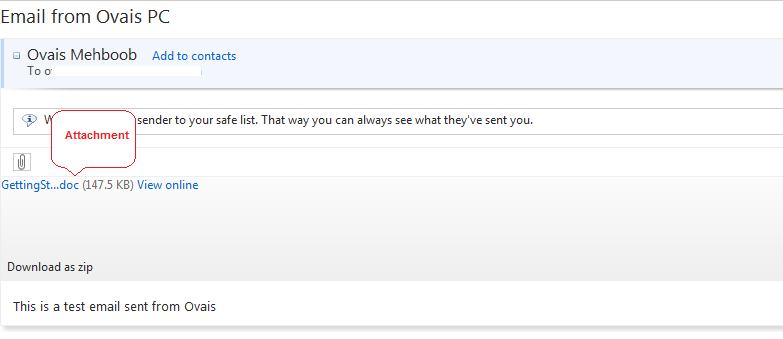
Below is the screen shot of the email item received on my Inbox at Office 365 exchange.

Happy Coding !

How to resolve Azure Storage Emulator start up issue

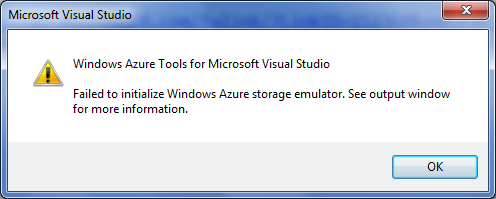
I was just exploring Azure Toolkit 1.4 and when I ran the application I got the following error. Following post shows the way to resolve this issue.

Actually Windows Azure storage emulator by default works on a  SQL Server Express instance which needs to be named ‘SQLExpress’. If you open the SQL Server Management Studio you can see the DevelopmentStorageDb20090919 database is created when install the Azure Toolkit.

We have to configure the named instance or default instance that we have registered in SQL Server (other than SQL Express)

1. Open Windows Azure command prompt from Program Files > Windows Azure SDK 1.4

2. For default Instance: write DSInit /sqlinstance:. 

OR

3. For named instance: write DSInit /sqlinstance:<named_instance> 

For e.g if you have .\sharepoint, then write DSInit /sqlinstance:sharepoint

4. On running this statement it will popup the window and create the emulator storage database on the instance specified.

4. Now start the storage emulator and enjoy coding on Azure.

Publishing Workflow as WCF Service

This post covers the basic step to publish worklfow as a WCF Service.

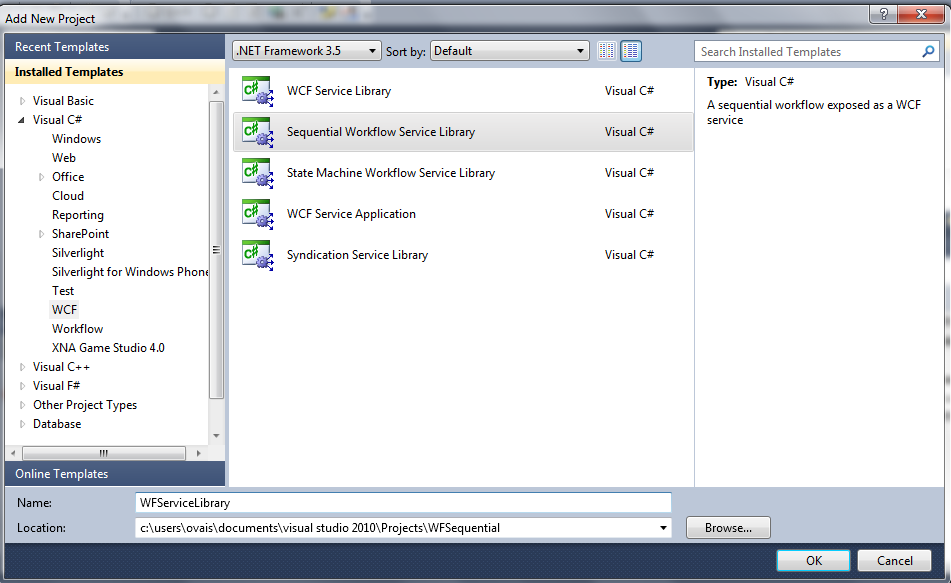
1. Open Visual Studio, create new project and select Sequential Workflow Service Library template. Specify name as WFSequentialServiceLibrary and press Ok.

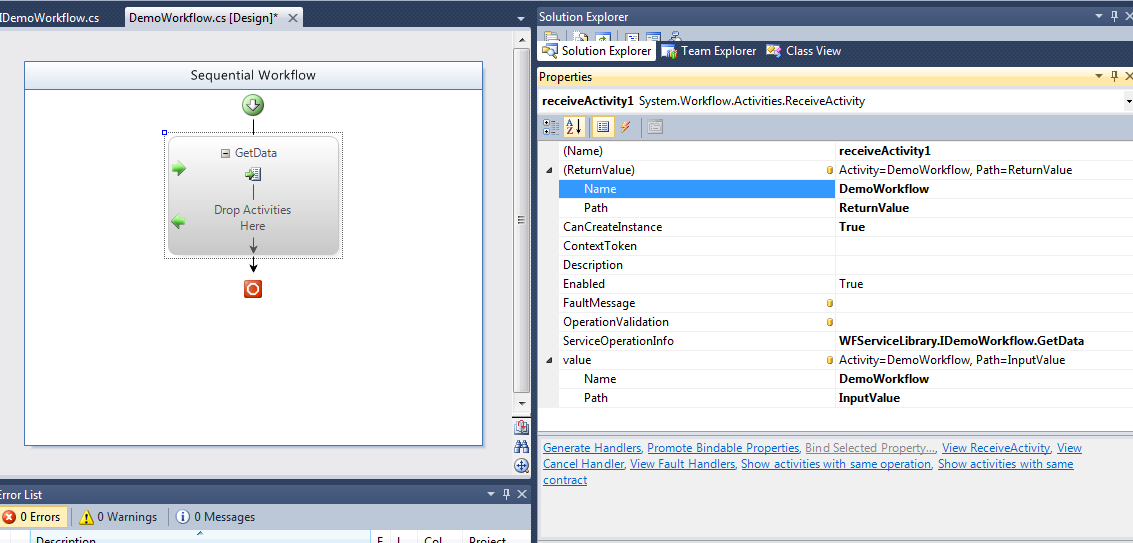
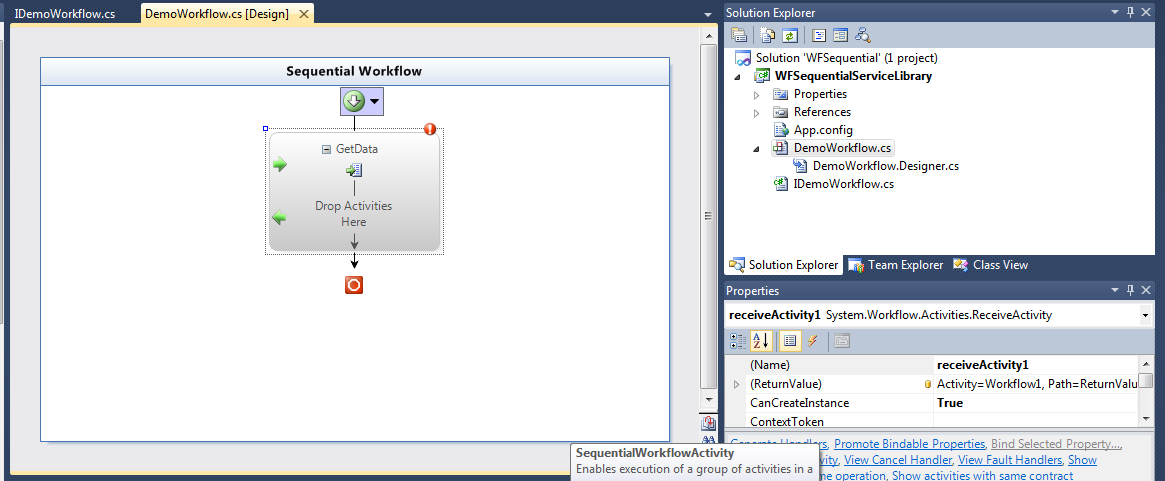
2. It will automatically adds IWorkflow1.cs (Service Contract) and Workflow1.cs (Workflow). Rename the IWorkflow1.cs to IDemoWorkflow.cs and DemoWorkflow.cs. It also adds ReceiveActivity which is used to call WCF methods (Operation contracts). You can easily configure the ReceiveActivity from the designer and map the Interface and Method which will be called from the Workflow.

3. Now expand the property section and specify “DemoWorkflow” in the “value” and “return value” properties of an activity.

4.  Now add a WCF Service Application project.

5.  In WCFServiceApp project add reference to the WFSequentialServiceLibrary project.

6. Open Service markup and specify the DemoWorkflow in the Service attribute and add Factory attribute as shown below.
<%@ ServiceHost Language=”C#” Debug=”true” Service=”WFSequentialServiceLibrary.DemoWorkflow” Factory=”System.ServiceModel.Activation.WorkflowServiceHostFactory”  %>

Factory attribute is necessary to specify here when publishing workflow as WCF service.

7. Open web.config file of WCFSeviceApplication and define basicHttpContextBinding rather than basicHttpBinding

 <services>
      <service name="WFSequentialServiceLibrary.DemoWorkflow" behaviorConfiguration="WcfServiceApp.Service1Behavior">
        <!-- Service Endpoints -->
        <endpoint address="" binding="basicHttpContextBinding" contract="WFSequentialServiceLibrary.IDemoWorkflow">
          <!--
              Upon deployment, the following identity element should be removed or replaced to reflect the
              identity under which the deployed service runs.  If removed, WCF will infer an appropriate identity
              automatically.
          -->
          <identity>
            <dns value="localhost"/>
          </identity>
        </endpoint>
        <endpoint address="mex" binding="mexHttpBinding" contract="IMetadataExchange"/>
      </service>
    </services>

8.  Now add another windows project from where we will call the WCF method and it executes the workflow.

9. Now add Service reference to the WCF Service Library.

10. Now add a button and add a code snippet in that event.

WcfServices.DemoWorkflow.DemoWorkflowClient client = new WcfServices.DemoWorkflow.DemoWorkflowClient();
MessageBox.Show(client.GetData(5));

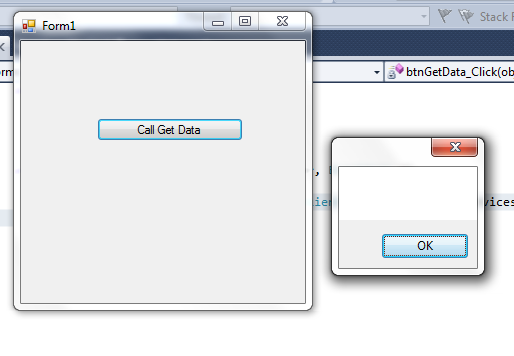
11. Now when run the application system will display the empty message box. This is because we have not specified any value in the Return property getter in workflow.

12. Now go to the Workflow project and soecify the return value.

13. Let’s run now, it will show you the entered no. in a message box.

Configuring Form Based Authentication in WSS

Last week i was just configuring the Form Based Authentication in WSS for one of our client. Although its been a very basic thing in sharepoint but i thought to blog it for any one who is new to it.

Below are the steps to configure FBA (Form Based Authentication) in Sharepoint/WSS 3.0.

Scenario: We will create a webapplication and site collection and then we will change the authentication to Form based rather windows which is default.

Form based authentication provider supports authentication against credentials stored in one of the following.

1. The Active Directory

2. a Database

3. An LDAP store

In this example i will show you the way one can authenticate the users from the database store.

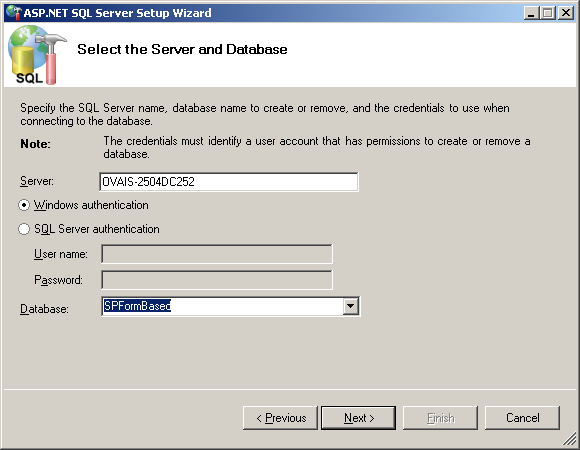
1. First of all execute aspnet_sqlreg.exe to configure the Asp.Net membership provider database in SQL Server.

Note: aspnet_regsql is placed inside %WindowsDir%\Microsoft.Net\Framework\v2.0.50727

Above screen shows the way to execute aspnet_regsql.exe

2. Press Next, and complete the wizard.

3. You will notice that the tables will be created in the database selected.

4. Now create a dummy website in Asp.Net

5. Add web cofiguration file

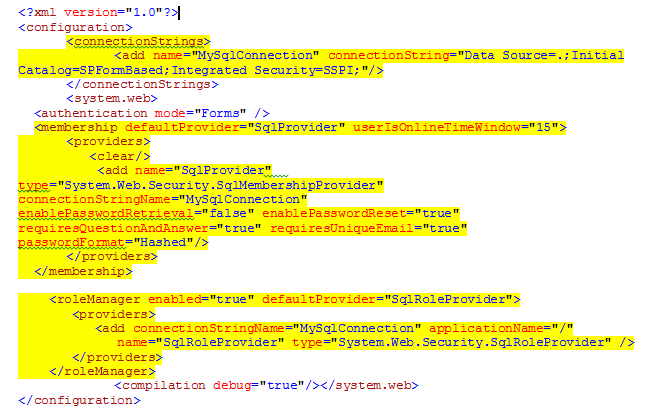
6. Specify the connection string to the database just created above.

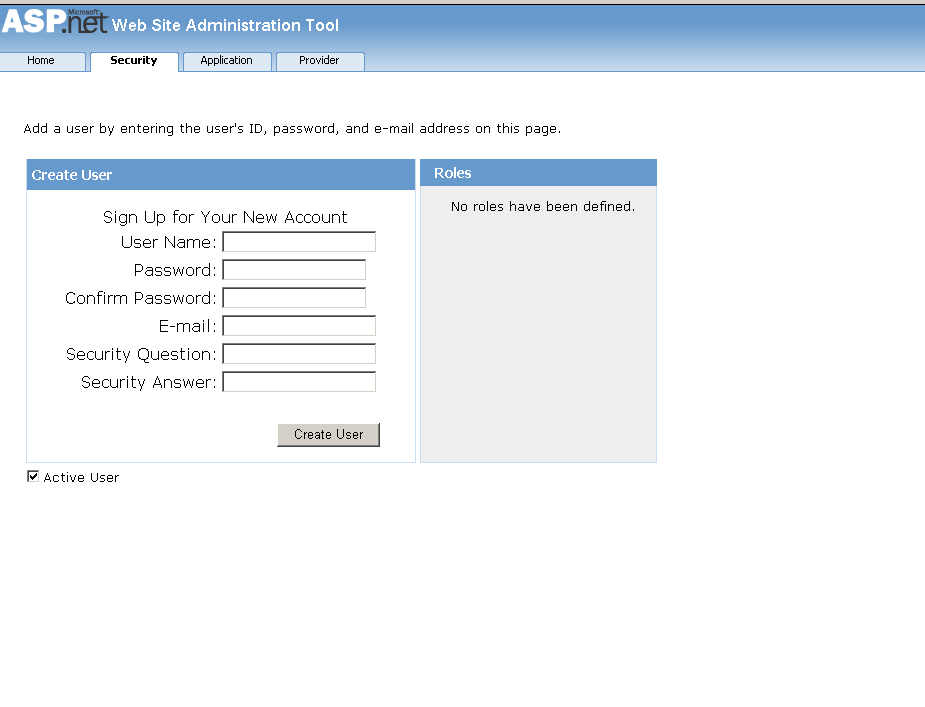
7. Now we have to add users, click on the Asp.Net Configuration under website section from Visual Studio

8. Now click on the Security link from the Asp.Net configuration website

9. In the Security page click on the Authentication Type and select “From Internet”

10. Press done to save the settings.

11. Now click on the Create users link to add users from the Security Page.

11. Now create a new Web Application in SharePoint from Central Administration.

12. Go to the Application Management in Central Administration website and click on “Create or Extend Web Application”.

13. In the Create or Extend Web Application page click on Create New Web Application

14. Specify appropriate values in the Create new web application screen and press Ok to create.

15. Now create a site collection for the newly created webapplication.

16. Now open the sharepoint webapplication web.config file and place connection string, people picker, membership provider and role providers.

Add People Picker Wild Cards for your Membership Provider

    <PeoplePickerWildcards>
      <clear />
      <add key="SqlProvider" value="%" />
    </PeoplePickerWildcards>

Add Connection string tag after </sharepoint>

  <connectionStrings>
    <add name="MySqlConnection" connectionString="server=ovais-2504dc252; database=SPFormBased; User Id=FBAService; Password=123;"/>
  </connectionStrings>

Add Membership provider and Role Manager under <system.web>

    <membership defaultProvider="SqlProvider">
      <providers>
        <clear />
        <add connectionStringName="MySqlConnection" enablePasswordRetrieval="false"
          enablePasswordReset="true" requiresQuestionAndAnswer="false"
          applicationName="/" requiresUniqueEmail="false" passwordFormat="Hashed"
          maxInvalidPasswordAttempts="5" minRequiredPasswordLength="1"
          minRequiredNonalphanumericCharacters="0" passwordAttemptWindow="10"
          passwordStrengthRegularExpression="" name="SqlProvider" type="System.Web.Security.SqlMembershipProvider" />
      </providers>
    </membership>
    <roleManager enabled="true" defaultProvider="SqlRoleProvider">
      <providers>
        <add connectionStringName="MySqlConnection" applicationName="/"
          name="SqlRoleProvider" type="System.Web.Security.SqlRoleProvider" />
      </providers>
    </roleManager>

17. Do the same for Central Administration web application but instead of setting Default provider to SqlProvider (in our case) set AspNetWindowsTokenRoleProvider in Role Manager tag.

   <membership defaultProvider="SqlProvider">
      <providers>
        <clear/>
        <add name="SqlProvider" type="System.Web.Security.SqlMembershipProvider"
             connectionStringName="MySqlConnection"
             enablePasswordRetrieval="false"
             enablePasswordReset="true"
             requiresQuestionAndAnswer="false"
              applicationName="/"
              requiresUniqueEmail="false"
              passwordFormat="Hashed"
              maxInvalidPasswordAttempts="5"
              minRequiredPasswordLength="1"
              minRequiredNonalphanumericCharacters="0"
              passwordAttemptWindow="10"
              passwordStrengthRegularExpression=""
             />
      </providers>
    </membership>
    <roleManager enabled="true" defaultProvider="AspNetWindowsTokenRoleProvider">
      <providers>
        <add name ="SqlRoleProvider" type="System.Web.Security.SqlRoleProvider"
        connectionStringName="MySqlConnection"
        applicationName="/" />
      </providers>
    </roleManager>

18. Now, open the properties windows from IIS for newly created website and go to the Directory Security tab.

19. Click on edit and set the Administrator account in Authentication methods screen. Note the administrator should have access rights to the ASPNet database.  Make sure that the user should have db_owner, membership_fullaccess rights.

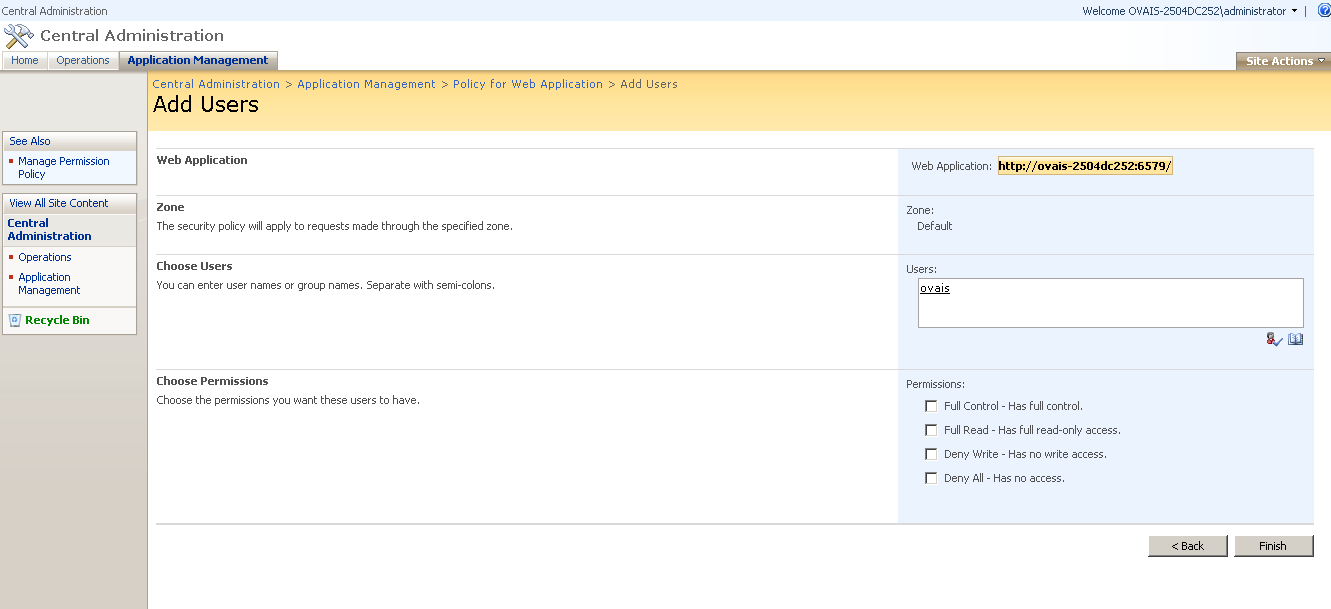
20. Now go to the Central Administration > Application Management > Policy for Web Application. Make sure the correct web application is selected.

21. Type the user name that exist in the Aspnet database. Sharpoint will resolve the name give appropriate rights.

22. Now navigate to the Web Application

23. Enter user name and password that exist in AspNet database.

24. System will login and display the home page.

Inspecting Messages in WCF

In WCF (Windows Communication foundation)  you can inpect the messages before sending reply and recieves client request through IDispatchMessageInspector interface. This helps the developer to investigate the message and log somewhere when needed.

In this post i will show the way of implementing IDispatchMessageInspector interface and how it can be applied in the custom behavior extension and configured for that Service behavior.

First of all you have to create a Message inspector class and implement the interface i.e. IDispatchMessageInspector. IDispatchMessageInspector interface provides two methods namely AfterReceiveRequest and BeforeSendReply which you can implement in the implementor class and inspect the messages. As the method named AfterRecieveRequest is called when the request came from the client and BeforeSendReply is called before the service sends the message back to client.

Below code snippet shows the class that implements IDispatchMessageInspector interface

using System;
using System.Collections.Generic;
using System.Linq;
using System.Web;
using System.ServiceModel.Dispatcher;
using System.ServiceModel.Channels;
using System.ServiceModel.Configuration;
using System.ServiceModel.Description;
using System.Diagnostics.Eventing;
namespace WCFMain
{
    public class MessageInspector :  IDispatchMessageInspector
    {
        public object AfterReceiveRequest(ref Message request, 
          System.ServiceModel.IClientChannel channel, 
          System.ServiceModel.InstanceContext instanceContext)
        {
            Logger.WriteLogEntry("Inside the AfterRecieveRequest");
            return null;
        }

        public void BeforeSendReply(ref Message reply, object correlationState)
        {
            Logger.WriteLogEntry("Inside Before Send Reply");
        }
    }
}

Inorder to add this Message Inpector we have to create a custom behavior extension class that derived from BehaviorExtensionElement and implements either IServiceBehavior or IEndpointBehavior. In WCF you can either add behavior at Service level or Endpoint level. In this example i will implement IServiceBehavior.

using System;
using System.Collections.Generic;
using System.Linq;
using System.Web;
using System.ServiceModel.Dispatcher;
using System.ServiceModel.Channels;
using System.ServiceModel.Configuration;
using System.ServiceModel.Description;
namespace WCFMain
{
    public class MessageBehaviourExtension : BehaviorExtensionElement, IServiceBehavior
    {

        public void ApplyClientBehavior(ServiceEndpoint endpoint, ClientRuntime clientRuntime)
        {
            Logger.WriteLogEntry("Inside the ApplyClientBehavior");
        }

        public override Type BehaviorType
        {
            get { return typeof(MessageBehaviourExtension); }
        }

        protected override object CreateBehavior()
        {
            return this;
        }

        public void AddBindingParameters(ServiceDescription serviceDescription, 
         System.ServiceModel.ServiceHostBase serviceHostBase, 
         System.Collections.ObjectModel.Collection<ServiceEndpoint> endpoints, 
         BindingParameterCollection bindingParameters)
        {
            Logger.WriteLogEntry("Inside the AddBindingParameters");
        }

        public void ApplyDispatchBehavior(ServiceDescription serviceDescription, 
         System.ServiceModel.ServiceHostBase serviceHostBase)
        {
            Logger.WriteLogEntry("Inside Apply Dispatch Behavior");
            for (int i = 0; i < serviceHostBase.ChannelDispatchers.Count; i++)
            {
                ChannelDispatcher channelDispatcher = serviceHostBase.ChannelDispatchers[i] as ChannelDispatcher;
                if (channelDispatcher != null)
                {
                    foreach (EndpointDispatcher endpointDispatcher in channelDispatcher.Endpoints)
                    {
                        MessageInspector inspector = new MessageInspector();
                        endpointDispatcher.DispatchRuntime.MessageInspectors.Add(inspector);
                    }
                }
            }
        }

        public void Validate(ServiceDescription serviceDescription, 
          System.ServiceModel.ServiceHostBase serviceHostBase)
        {

        }
    }
}

In the above snippet if you see that i have add the custom message inspector object for each endpoints defined for the service. So when the WCF engine calls this method it will add the message inspector for all endpoints defined in the service configuration.

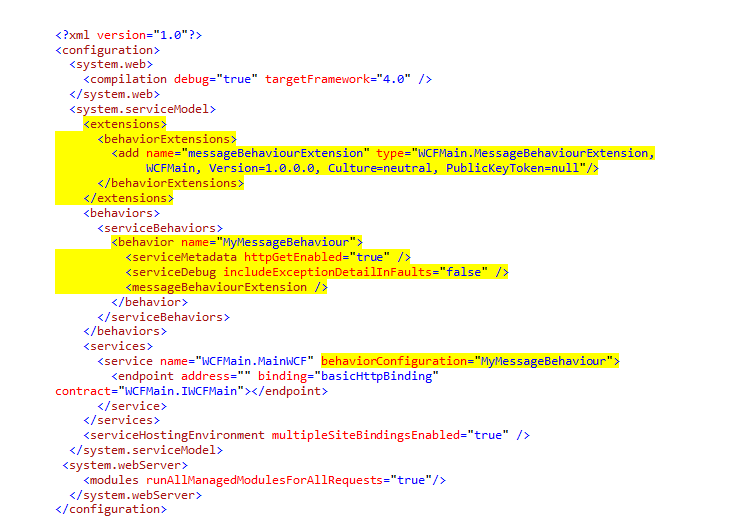
Now, in the web.config file at server side you have to add following entries to configure this custom behavior extension and specify in the service behavior.

WPF Data Binding Options

In this post i will show the different ways of binding WPF control elements with the different sources. WPF provides binding both declarative and imperatively through code. It provides greater flexibility to the developer to bind the target value to source value in the XAML file.

The term data binding describes the process of creating a dependence for the value of one property i.e. the target property to the source property. The target property takes on the value of the source property. In some cases, changes to the source property are transmitted to the target immediately, but in some cases, they are not.

Following are the types of bindings that are the part of this post and mostly used in WPF applications.

1. Binding target value to WPF element.
2. Binding to an Object
3. Binding to Ancestor properties through RelativeSource property.
4. Binding to Data Sources
5. Binding to an Object with ObjectDataProvider

1. Binding Target value to WPF Element:
This type of binding used when you want to bind the target property to any WPF element (control) property. For e.g. you want to bind the Textbox text to the label Content property. When the user write in the textbox it should reflect the change in the label control. In this case, you add a textbox and a label controls in the WPF form. And specify the binding as follows.

Above code snippet shows the binding of Label Content target property with the Textbox Text source property. Now when you run the application and write something on textbox it will directly reflect the changes on the Label.

2. Binding to an Object
When binding to an Object we use Source property to specify the source object. For binding with object, in the Window.Resources tag user has to specify the Resource object. Below code snippet shows the way of binding an Object property with the resource object.

The above code snippet binds the StaticResource to the personObj which was defined in the Window.Resources tag and Path specified the property which holds the value. Now when run the application it will bind the TextBlock text value with the property value. When the form loads it initialize an object and fill the value obtained from that object property. If you want to pull data from some other datasource at runtime then you don’t need to specify the Binding Source property and only have to specify the Path property and in the code behind bind the TextBlock text source to that object value.

You can also specify the StaticResource binding property over Grid level or at container level. So you don’t need to specify the static resource property on every control bindings. All the controls that come under that container will use that datasource. But you need to specify the path which maps the property to that object property. Following snippet shows the way of binding through DataContext property at Container level.

3. Binding to Ancestor properties through RelativeSource property
Using the RelativeSource attribute in the binding you can bind the source to the ancestor property value. For example you have specified the Tag attribute in the Grid container. And you want to bind the Tag property in the Textbox control that comes under grid container. You can do that by using RelativeSource property. Following code snippet shows the way of binding to ancestor properites through RelativeSource property.

4. Binding to Data Sources

This is when you want to bind the Collection controls like Listbox etc. with different datasources.ListBox in WPF contains an ItemSource property which helps to bind the datasource. Normally in business application collection retrieves from database. So you dont need to specify the Source property in the Listbox ItemsSource property and just specify the Binding keyword followed with the DisplayMemberPath which is used to map the object property retrieved from the Collection to the control display item property.

Following code snippet shows the binding.

5. Binding to an Object with ObjectDataProvider

Using ObjectDataProvider class you can bind a WPF element to a method called on an object. You can specify an object type and a method on that type. WPF also provides an option to bind methods that have parameters in its signature and  user can define the method parameters declaratively in XAML with their default values.

Below code snippet shows the way of binding method that contains no parameters in its signature.

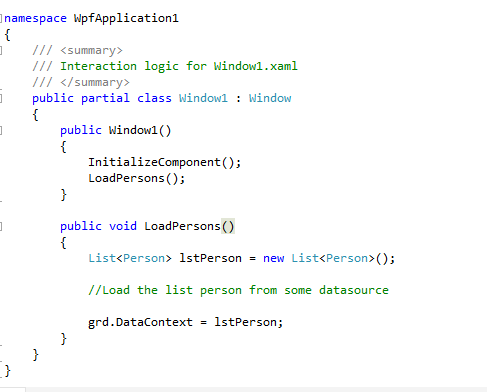
In the code above first i created a method named GetText which return some string. And then I have specified the ObjectDataProvider tag and reference it in the TextBlock.

Below code snippet shows the way of binding method that contains two parameters in its signature.

Define method.

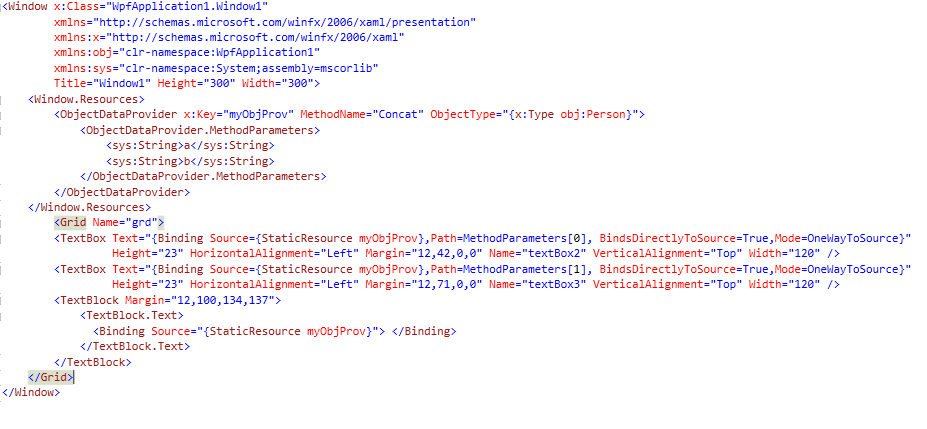
Specify ObjectDataProvider in the XAML.

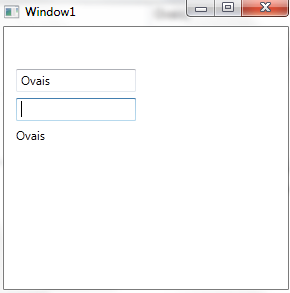
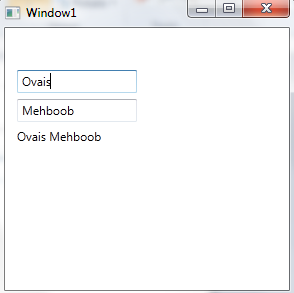
When run the Application and enter the data in two textboxes, the Concat method takes the values from those textboxes and bind the returned concatenated string with the TextBlock as shown below.

Consuming WCF Service in WP7

In this post i will show you the very basic way of calling WCF service in WP7 application and persisting the service url in the isolated storage of mobile. In WCF there are two modes to configure endpoints i.e. Imperative and Declarative. Imperative means developer can configure the endpoints through code whereas in the declarative mode, it is configure in the configuration file.

Whats the problem?
We came to the question that suppose we have provided a WP7 application to one of our client. And that application consumes some WCF service. Suppose the service endpoint address is changed, now how can the client configure the endpoint address on his mobile/device.

Every mobile has their persistence storage media. And each application gets the quota where you can store some configuration settings or data to utilize where applicable. In WP7 there is a class called IsolatedStorage through which developer can get an access to the Application store.

Below i have shown a way to use the Isolated Storage and consume WCF service from WP7 mobile application.

Requirements: WP7 SDK, Visual Studio 2010.

Steps:
1. Open Visual Studio and create a new project of “Windows Phone Application”

2. Add another WCF Service Application Project.

3. Open the WP7 project and in the MainPage.xaml form add two textboxes for defining Server Name and Port, add a button to get the data from WCF service and the textbox to display the Service result.

4. Open the Service Application project and define operation contract named GetData as shown below.

namespace TestService
{
// NOTE: You can use the "Rename" command on the "Refactor" menu to change the interface name "IService1" in both code and config file together.
[ServiceContract]
public interface ITestService
{

[OperationContract]
string GetData();
}
}

namespace TestService
{
// NOTE: You can use the "Rename" command on the "Refactor" menu to change the class name "Service1" in code, svc and config file together.
public class WCFTestService : ITestService
{
public string GetData()
{
return "Hello world!";
}

}
}

5. Add reference to this service in WP7 project

6. Now in the Button click event we need to call the service, following snippet shows the way to store the Server name and port in the isolated storage of mobile device and consume the service.

private void btn_Click(object sender, RoutedEventArgs e)
{
String strUrl = "http://" + txtServerName.Text + ":" + txtPort.Text + "/WCFTestService.svc";

IsolatedStorageFile file = IsolatedStorageFile.GetUserStoreForApplication();
if (file.FileExists("Sources.res"))
{
file.DeleteFile("Sources.res");

}
IsolatedStorageFileStream fs = file.CreateFile("Sources.res");
System.IO.StreamWriter writer = new System.IO.StreamWriter(fs);
writer.Write(strUrl);
writer.Close();
fs.Close();
fs.Dispose();

System.ServiceModel.EndpointAddress epa = new System.ServiceModel.EndpointAddress(strUrl);
Services.TestService.TestServiceClient client = new Services.TestService.TestServiceClient("BasicHttpBinding_ITestService", epa);
client.GetDataCompleted += new EventHandler(client_GetDataCompleted);
client.GetDataAsync();
}


void client_GetDataCompleted(object sender, Services.TestService.GetDataCompletedEventArgs e)
{
textBox3.Text = e.Result;
}

7. In the MainPage constructor add following snippet to read the Server Name and Port from the isolated saved earlier.

// Constructor
public MainPage()
{
InitializeComponent();
IsolatedStorageFile file = IsolatedStorageFile.GetUserStoreForApplication();
string[] strArr=file.GetFileNames();
if (file.FileExists("Sources.res"))
{
IsolatedStorageFileStream fs = file.OpenFile("Sources.res", System.IO.FileMode.Open);
System.IO.StreamReader reader = new System.IO.StreamReader(fs);
String str = reader.ReadLine();
textBox1.Text = str.Substring(str.IndexOf("/") + 2, str.LastIndexOf(":") - 1 - str.IndexOf("/") - 1);
textBox2.Text = str.Substring(str.LastIndexOf(":") + 1, 4);
reader.Close();
fs.Close();
fs.Dispose();
}
}

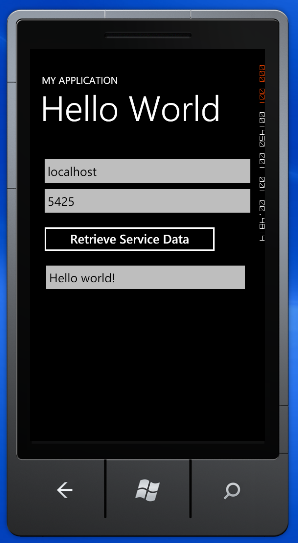
Now run the application, specify the Server Name and Port and then click on the Retrieve Service Data button.

Using Facebook SDK in Desktop Application C#.Net

This post shows the basic way of using Facebook SDK C#.Net in Desktop/Windows based application to authenticate user and enable developers to access the complete data of the logged in user.

First of all developer has to create an application in http://www.facebook.com/developers. This is very simple and can be done in seconds. Following are some basic steps.

1. Login http://www.facebook.com/developers

2. Click on a link named as “Set Up New App”.

3. Specify Application Name, in my case its “Test”. Click on ‘Create App”.

4. Once the application is created select the “Website” tab and note the “Application Key”. This Application Key will be used to connect to the Application using Facebook SDK.

Now we have configured and created an application and perform different operations from our desktop application. Following are the steps to develop a basic desktop application that authenticate user and populates his full name and gender in the text fields.

First of all download the provided at CodePlex forum.

1. Open Visual Studio

2. Create Windows Application

3. Download the Facebook Developer SDK from Facebook Developer SDK and add References to the Facebook Developer Kit, through NuGet (gives you an option to reference third party library packages) or add Facebook.dll and Facebook.WinForms.dll manually.

4. Open Visual Studio and Create a new tab in Toolbox section e.g. “Facebook Control” and click on “Choose Items” and browse the “Facebook.Winforms.dll” file.

5. On selection, It will show the list of controls embedded in that assembly, just click on Ok to add it in your IDE toolbox section.

6. Now drag and drop the FacebookService as shown below.
7. Add a button that performs Authentication first, and then get the User details. Also place two text boxes.

8. Now set the Application Key in the Application Key property of FacebookService control as shown below.
9. Now in the button click event place following snippet that connects to facebook and displays the username and email address on the form.

facebookService1.ConnectToFacebook();
txtUserName.Text = facebookService1.Users.GetInfo().first_name + " " + facebookService1.Users.GetInfo().last_name ;
txtGender.Text = facebookService1.Users.GetInfo().sex;

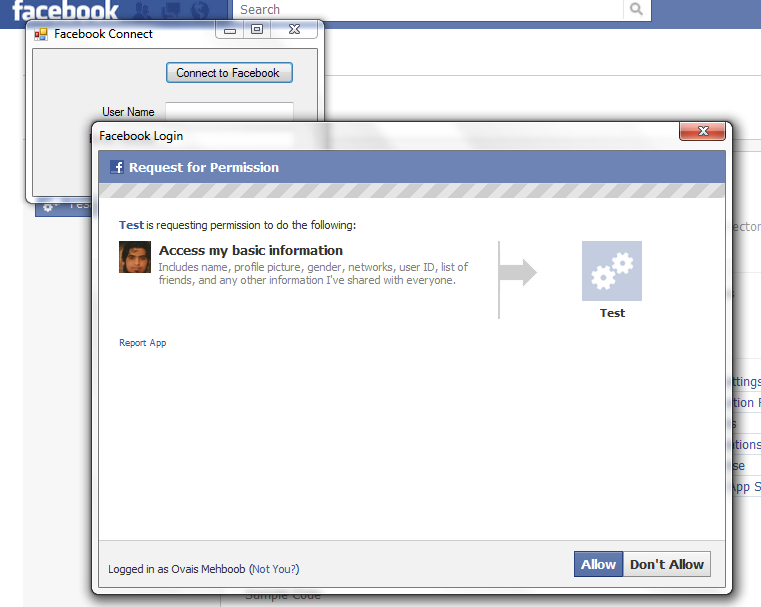
10. Now when run the application and click on the “Connect to Facebook” button it will show the Facebook login screen, enter valid username and password.

11. On Authentication, it will prompt to allow/don’t allow to use Facebook from Test application. Click Allow.

12. Then it will display the user name and gender of the logged in user.

You can also get friend list, update status, retrieve photos, and bunch of more operation that are provided in the SDK.