Dynamic Binding of SharePoint Lists with .Net Business Objects
This document highly detailing the binding of .Net business objects with SharePoint list and also provides a framework which provides dynamic support of CRUD operations, In which the developer only needs to define a business object and mapping with list and its fields, rest will be done by the framework itself.
First of all, develop two class Attributes namely ListAttribute and FieldAttribute
a. ListAttribute maps the SharePoint List Name.
b. FieldAttribute maps the column of SharePoint list.
Code Snippet for ListAttribute
  [AttributeUsage(AttributeTargets.Class)]

public class ListAttribute

    {

        string listName;
public ListAttribute(String _listName)
{
this.listName = _listName;
}
public string ListName
{
get { return this.listName; }
}
}
Code snippet for FieldAttribute
[AttributeUsage(AttributeTargets.Property)]

    public class FieldAttribute : Attribute

    {
public FieldAttribute(String listItemName)
{
this.listItemName = listItemName;
}
string listItemName;
public string ListItemName
{
set { this.listItemName = value; }
get { return this.listItemName; }
}
}
Now let’s develop the custom list named Demo in SharePoint and specify Title, Description, Date columns.

Develop the business object for Demo list. Below code snippet shows the class details. Business Object class is derived from the parent class BaseEntity. Reason of binding is that the framework supports generic methods for all types of CRUD operations, this benefits the business objects that are derived from the BaseEntity to be passed as a parameter.
 [ListAttribute("Demo")]

    public class TripLogList: BaseEntity

    {

        string title;

        [FieldAttribute("Title")]

        public string Title {

            set { this.title = value; }

            get { return this.title; }

        }
string description;
[FieldAttribute("Description")]
public string Description
{
set { this.description = value; }
get { return this.description; }
}
DateTime dateTime;
[FieldAttribute("Date")]
public DateTime DateTime
{
set { this.dateTime = value; }
get { return this.dateTime; }
}
Int32 id;
[FieldAttribute("ID")]
public Int32 Id
{
set { this.id = value; }
get { return this.id; }
}
}
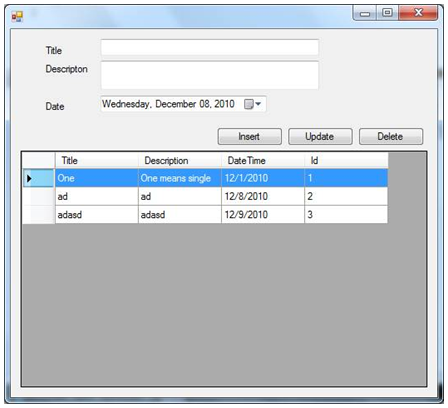
Develop windows form through which we can manipulate SharePoint list items and can perform Insert, update, delete and load operations.
Below screen shows all the items stored in the Demo list

Framework provides the PersistanceManager object through which the developer can directly call Insert, Update, Delete and LoadAll methods and these operations will be performed by the PersistanceManager itself. Developer does not need to manually bind the SharePoint list items with business objects and depending on the fieldname specified, automatic binding will be done on loading, insertion, updation and deletion of list.
To Insert,
 Demo demoObj = new Demo();

 demoObj.Title = txtitle.Text;

 demoObj.Description = txtDescription.Text;

 demoObj.DateTime = dtPicker.Value;

 PersistanceManager.GetInstance().Insert(demoObj);
To update,
 Demo demoObj = new Demo();

        demoObj.Id = Convert.ToInt32(row.Cells["id"].Value.ToString());

        demoObj.Title= row.Cells["Title"].Value.ToString();

        demoObj.Description=row.Cells["Description"].Value.ToString();

        demoObj.DateTime = Convert.ToDateTime(row.Cells["DateTime"].Value);

        PersistanceManager.GetInstance().Update(demoObj);
To delete,
 Demo demoObj = new Demo();

       demoObj.Id = Convert.ToInt32(row.Cells["id"].Value.ToString());

       PersistanceManager.GetInstance().Delete(demoObj);
To LoadAll,
ArrayList lst=PersistanceManager.GetInstance().LoadAll(typeof(Demo));
grdView.DataSource=lst; // Binding datasoure with datagridview object.
Framework Classes/Interfaces
IDataManager
An interface which contains generic methods. When defining new Persistance Manager for any data source this interface should be derived with it.
 interface IDataManager

    {

       void  Insert(BaseEntity baseEntity);

       void Update(BaseEntity baseEntity);

       void Delete(BaseEntity baseEntity);

       ArrayList LoadAll(Type type);

     }
SPPersistanceManager
Persistance Manager class for SharePoint. This class implements the Insert, Update, Delete and LoadAll operations. For e.g if you have SQL Server datasource you need to develop a new class named SQLPersistanceManager and defines implements IDataManager methods.
public class SPPersistanceManager : IDataManager

    {
String siteURL = System.Configuration.ConfigurationSettings.AppSettings.Get("SharePointSite");
//Load All Items
public ArrayList LoadAll(Type type)
{
ArrayList objlist = new ArrayList();
using (SPSite site = new SPSite(siteURL))
{
using (SPWeb web = site.OpenWeb())
{
String listName=FrameworkFacade.GetInstance().GetListName(type);
ArrayList fieldList = (ArrayList)FrameworkFacade.GetInstance().GetFields(type);
SPList list=web.Lists[listName];
foreach (SPListItem item in list.Items)
{
Demo tripLogObject = new Demo();
foreach (String fieldName in fieldList)
{
FrameworkFacade.GetInstance().SetFieldValue(tripLogObject, fieldName, item[fieldName]);
}
objlist.Add(tripLogObject);
}
}
}
return objlist;
}
//Insert Implementation
public void Insert(BaseEntity obj)
{
ArrayList fieldList = (ArrayList)FrameworkFacade.GetInstance().GetFields(obj.GetType());
using (SPSite site = new SPSite(siteURL))
{
using (SPWeb web = site.OpenWeb())
{
SPList myList = web.Lists[FrameworkFacade.GetInstance().GetListName(obj.GetType())];
SPListItem myListItem = myList.Items.Add();
foreach (String fieldName in fieldList)
{
if (!fieldName.Equals("ID"))
{
myListItem[fieldName] = FrameworkFacade.GetInstance().GetFieldValue(obj, fieldName);
}
}
web.AllowUnsafeUpdates = true;
myListItem.Update();
web.AllowUnsafeUpdates = false;
}
}
}
//Update Implementation
public void Update(BaseEntity obj)
{
using (SPSite site = new SPSite(siteURL))
{
using (SPWeb web = site.OpenWeb())
{
SPList myList = web.Lists[FrameworkFacade.GetInstance().GetListName(obj.GetType())];
SPListItem item = myList.GetItemById(Convert.ToInt32(FrameworkFacade.GetInstance().GetFieldValue(obj, "ID")));
ArrayList arrFields = FrameworkFacade.GetInstance().GetFields(obj.GetType());
foreach (String fieldName in arrFields)
{
if(fieldName!="ID")
item[fieldName] = FrameworkFacade.GetInstance().GetFieldValue(obj, fieldName);
}
item.Update();
}
}
}
//Delete Implementation
public void Delete(BaseEntity obj)
{
using (SPSite site = new SPSite(siteURL))
{
using (SPWeb web = site.OpenWeb())
{
SPList myList = web.Lists[FrameworkFacade.GetInstance().GetListName(obj.GetType())];
Int32 value = Convert.ToInt32(FrameworkFacade.GetInstance().GetFieldValue(obj, "ID").ToString());
myList.Items.DeleteItemById(value);
}
}
}
}
FrameworkFacade
FrameworkFacade is a core class which traverses object metadata through reflection and helps to retrieve properties, custom attributes and setting or getting property values, invoking methods etc.
public class FrameworkFacade

    {

        static Object _lock = new Object();

        static FrameworkFacade instance = null;

        private FrameworkFacade() { }

        public static FrameworkFacade GetInstance() {

            lock (_lock)

            {

                return (instance == null) ? new FrameworkFacade() : instance;

            }
}
//Get Field value
public Object GetFieldValue(Object obj, String propertyAttributeName)
{
object fieldValue = null;
Type type = obj.GetType();
var props = type.GetProperties();
foreach (System.Reflection.PropertyInfo propInfo in props)
{
Object[] propertyAttribute = propInfo.GetCustomAttributes(typeof(FieldAttribute), true);
if (((FieldAttribute)propertyAttribute[0]).ListItemName == propertyAttributeName)
{
System.Reflection.MethodInfo methodInfo =
propInfo.GetGetMethod();
fieldValue = methodInfo.Invoke(obj, null);
break;
}
}
return fieldValue.ToString();
}
//Set Field Value
public void SetFieldValue(Object obj, String propertyAttributeName, Object value)
{
Type type = obj.GetType();
var props = type.GetProperties();
foreach (System.Reflection.PropertyInfo propInfo in props)
{
Object[] propertyAttribute = propInfo.GetCustomAttributes(typeof(FieldAttribute), true);
if (((FieldAttribute)propertyAttribute[0]).ListItemName == propertyAttributeName)
{
if (propInfo.CanWrite)
{
propInfo.SetValue(obj, value, null);
}
break;
}
}
}
//Get ListAttribute value from type
public String GetListName(Type type)
{
String name = type.Assembly.FullName;
object[] obj = type.GetCustomAttributes(typeof(ListAttribute), true);
ListAttribute listAttribute = (ListAttribute)obj[0];
return listAttribute.ListName;
}
//Get All Fields from Type.
public System.Collections.ArrayList GetFields(Type type)
{
System.Collections.ArrayList fieldProperties = new System.Collections.ArrayList();
string name = type.Assembly.FullName;
System.Reflection.Assembly assembly = System.Reflection.Assembly.LoadFrom(type.Assembly.Location);
System.Reflection.PropertyInfo[] propInfo = type.GetProperties();
foreach (System.Reflection.PropertyInfo property in propInfo)
{
object[] propAttributes = property.GetCustomAttributes(typeof(FieldAttribute), true);
foreach (object obj in propAttributes)
{
String fieldValue = ((FieldAttribute)obj).ListItemName;
fieldProperties.Add(fieldValue);
}
}
return fieldProperties;
}
#endregion
}



 Ovais TechBlogs